 Declutta
How to Clear Cache on iPhone - Every Method That Actually Works
Clear Safari cache, app caches and Messages, and offload apps, with a straight answer on how much space each one really gives back.
Your iPhone says storage is full, so you searched for how to clear the cache - what you would do on a computer. The honest version first:
There is no single “clear cache” button on an iPhone, and there never has been. Safari has its own control. Every other app keeps its cache sealed inside its own sandbox. Clear everything that genuinely can be cleared and you will typically recover 100 MB to 1.5 GB.
Worth doing - every method that works is below. But if your phone is full by tens of gigabytes, the cache is not why.
What can and can’t be cleared
| What | Can you clear it? | Typical size |
|---|---|---|
| Safari cache and website data | Yes, directly | 100-800 MB |
| Any app’s cache, from Settings | No - offload the app instead | varies |
| Messages attachments | Yes, by age or individually | 1-10 GB |
| System Data / “Other” | No, not directly | 5-20 GB |
| Photos and videos | Yes - usually the real problem | 20-90 GB |
Clear the Safari cache
The only true cache control iOS gives you, and the one worth doing first.
Settings → Apps → Safari → Clear History and Website Data → choose All history. (On iOS 17 and earlier, Safari sits in the main Settings list.)
It removes history, cached page assets and cookies for every site, but not bookmarks, saved passwords, AutoFill or your Reading List. The cost: you are signed out of every site you were logged into, banking and webmail included.
To clear cookies without losing history, go to Safari → Advanced → Website Data instead. Every site holding data, largest first - swipe to remove one, or Remove All Website Data for the lot.
Clear an app’s cache
iOS has no universal app cache clear, and no third-party app can do it either. That is the sandbox: every app runs in a container no other app and no global toggle may open. Three real options:
1. The app’s own setting. Chrome → Privacy and Security → Delete Browsing Data. Spotify → Storage → Clear Cache. WhatsApp → Storage and Data → Manage Storage. Telegram → Data and Storage → Storage Usage. Instagram, TikTok and YouTube have none.
2. Offload it. Settings → General → iPhone Storage → the app → Offload App. Deletes the binary and its whole cache, keeps every document and setting; tap the icon later and it reinstalls where you left off. Delete App, directly below, takes the data too - only one of the two is reversible.
3. Delete and reinstall, for an app with no cache control. Last resort - you lose local data and logins.
Messages, Mail, restart
Messages is quietly the biggest one on a well-used phone. Settings → Apps → Messages → Keep Messages → 1 Year clears years of attachments at once. To keep the conversations, use iPhone Storage → Messages → Review Large Attachments and delete only the 400 MB videos.
Mail caches every attachment you open and has no clear button. Remove the account in Settings → Apps → Mail → Mail Accounts and add it back: your mail re-downloads without the local cache. Know the password first.
Restart. It clears temporary memory caches and is the one thing that reliably drops the System Data figure, often by a few hundred megabytes.
Three things that don’t work
- The “hold power then press Cancel” trick. Does nothing on a modern iPhone.
- Apps claiming to clear your cache. They cannot - same sandbox. What they can reach is your photo library: a real thing to clean, but not what was advertised. More on judging them.
- Clearing System Data directly. No menu exists. Safari data plus a restart is the only user-facing action that moves it - full breakdown.
So how much did you get back?
| Action | Typical recovery |
|---|---|
| Safari history and website data | 200-800 MB |
| Offloading three or four heavy apps | 300 MB - 2 GB |
| Messages set to 1 year | 1-6 GB |
| Mail account re-added | 0.5-2 GB |
| Restart (System Data) | 100-500 MB |
A few gigabytes at best, and Messages is doing most of it. Now open Settings → General → iPhone Storage and read the top of the list. On most iPhones it says Photos, and the number beside it is larger than everything you just cleared put together, often by twenty times. One minute of 4K video is roughly 400 MB, every Live Photo carries a video, and the same image arrives twice over two apps.
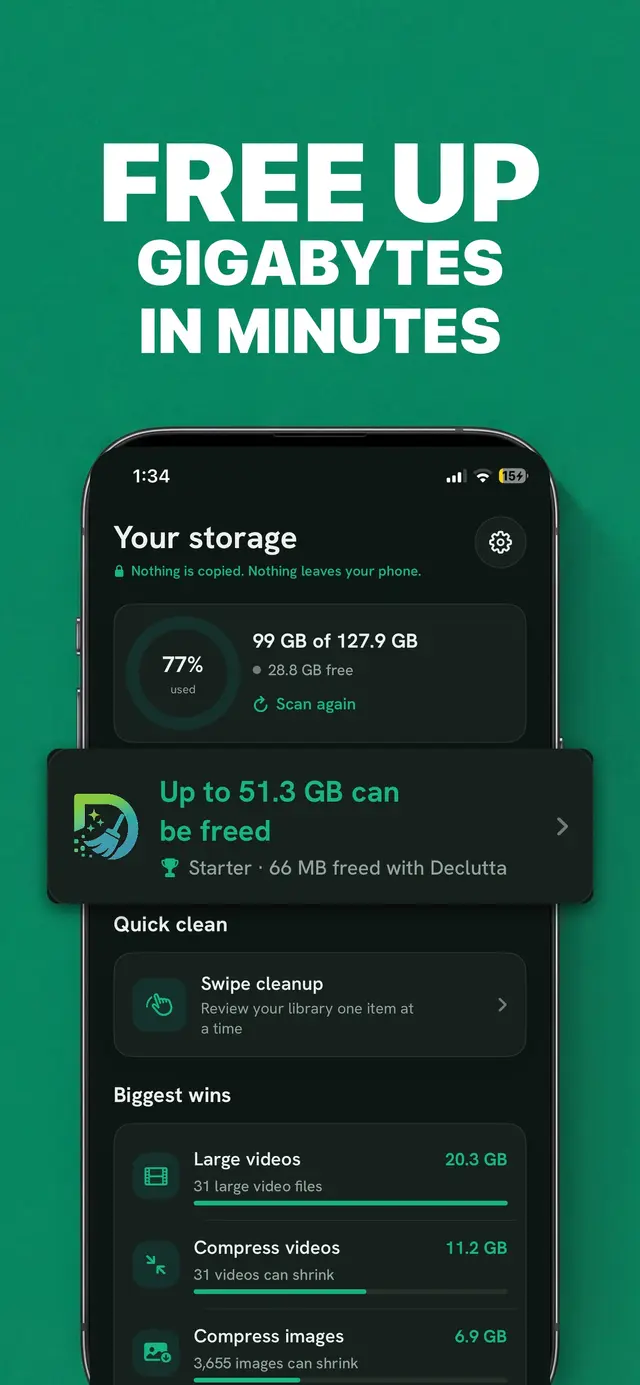
That gap is what Declutta exists for: duplicates, near-identical shots, oversized videos, screen recordings and blurry frames, with the saving shown per category and nothing removed until you confirm. Free, on-device, no ads, no account. The ordered walkthrough: how to free up storage on iPhone.
Frequently asked questions
How do I clear the cache on my iPhone?
There is no single button. Clear Safari’s cache in Settings → Apps → Safari → Clear History and Website Data. Other apps each keep their own cache and have to be cleared from inside that app’s own settings, or by offloading the app in Settings → General → iPhone Storage. iOS has no system-wide cache clear because every app’s cache is sealed inside its own sandbox.
How much space does clearing the cache actually free?
Usually between 100 MB and 1.5 GB across Safari and a handful of heavy apps. It is real, but it is rarely the reason a phone is full. On most iPhones the photo and video library is ten to fifty times larger than every cache combined.
How do I clear cookies on my iPhone without losing my history?
Go to Settings → Apps → Safari → Advanced → Website Data, then swipe to remove individual sites or tap Remove All Website Data. This clears cookies and cached site data while leaving your browsing history intact.
See your own numbers. Declutta shows how much is recoverable before you delete anything - free, no ads, no paywall, nothing uploaded.
Get Declutta free