 Declutta
What Is System Data on iPhone - and How to Actually Shrink It
System Data eating 15 GB? What that grey bar contains, the five things that shrink it, the ones that do not, and why it grows back.
You opened Settings → General → iPhone Storage, and under the apps sits a grey bar called System Data holding 15, 30, sometimes 60 GB. There is no button beside it. Tapping it does nothing.
The straight version: you cannot clear System Data directly, and there is no hidden menu that does it. But a good portion of what lands in there is reachable by other means.
What System Data actually is
System Data - labelled Other before iOS 15 - is the bucket for everything iOS cannot file under an app or under Photos:
- Caches, including Safari’s website data and system service caches
- Streaming buffers written to disk by Netflix, YouTube, Spotify and Apple Music
- Logs, diagnostics and crash reports
- Siri voices, downloaded fonts and keyboard dictionaries
- Partly or fully downloaded iOS update files waiting to be installed
Most of that is working cache, not junk. It exists to keep the phone fast, and iOS purges it on its own when storage gets tight - which is why the number rises and falls without you touching anything.
What’s normal? Roughly 5-15 GB in regular use. Above about 20 GB, something specific is usually going on.
What genuinely shrinks it
1. Delete a downloaded iOS update. The biggest one-off win, and most people don’t know the file is there - often 5-8 GB. iPhone Storage → an entry named after the iOS version → Delete Update. Safe: the phone re-downloads it when you choose to update.
2. Clear Safari’s website data. Settings → Apps → Safari → Clear History and Website Data, or Safari → Advanced → Website Data to remove only the biggest sites and stay logged in. Typically 200 MB - 1 GB. Full method.
3. Restart. Cheapest thing on the list. It lets iOS clear temporary caches it cannot touch while in use; the figure usually drops by a few hundred megabytes, sometimes a couple of GB.
4. Offload the apps that stream. iPhone Storage → the app → Offload App. Removes the app and its cache, keeps your documents and settings. Netflix, Spotify and podcast apps are the usual suspects. Delete App, just beneath, takes the data too.
5. Shorten what Messages keeps. Settings → Apps → Messages → Keep Messages → 1 Year. On a phone carried a few years this routinely frees several gigabytes. To keep the conversations, use iPhone Storage → Messages → Review Large Attachments.
What doesn’t work
Tapping the System Data bar. It isn’t a button.
Third-party “System Data cleaners”. No iOS app can read or delete system caches, logs or another app’s container - the same sandbox that stops a random app reading your banking session. A listing promising otherwise describes something iOS does not permit.
RAM boosters. Different thing entirely, and iOS manages memory itself.
Erase All Content and Settings does reset it, and it is the only guaranteed fix. The catch most guides leave out: restoring from a backup brings much of it straight back, because the backup carries the same accumulated state. Setting up as new is what keeps the number down, at the cost of reconfiguring everything. Worth it at 50 GB and an unusable phone; not at 10 GB.
So how much did you get back?
| Action | Typical recovery |
|---|---|
| Delete a downloaded iOS update | 0 or 5-8 GB |
| Clear Safari website data | 200 MB - 1 GB |
| Restart | 100 MB - 2 GB |
| Offload three streaming apps | 300 MB - 2 GB |
| Messages set to 1 year | 1-6 GB |
If the update file was there, you have had a good day. If not, you are looking at 1-4 GB - and it will drift back up, because most of it is cache the phone rebuilds deliberately.
Is System Data even your problem?
Go back to iPhone Storage and read the top of the list rather than the bottom.
On most iPhones it says Photos, several times larger than System Data. A 15 GB grey bar is annoying; a 70 GB photo library is why the phone is full. The difference is control - System Data is managed by iOS and gives back a gigabyte or two if you work at it. Your library is entirely yours, and full of things nobody would miss:
- The same shot taken four times to get one good one, all four still there
- One minute of 4K video at roughly 400 MB
- Screen recordings sent once and kept forever
- A video attached to every Live Photo, usually two thirds of what the shot weighs
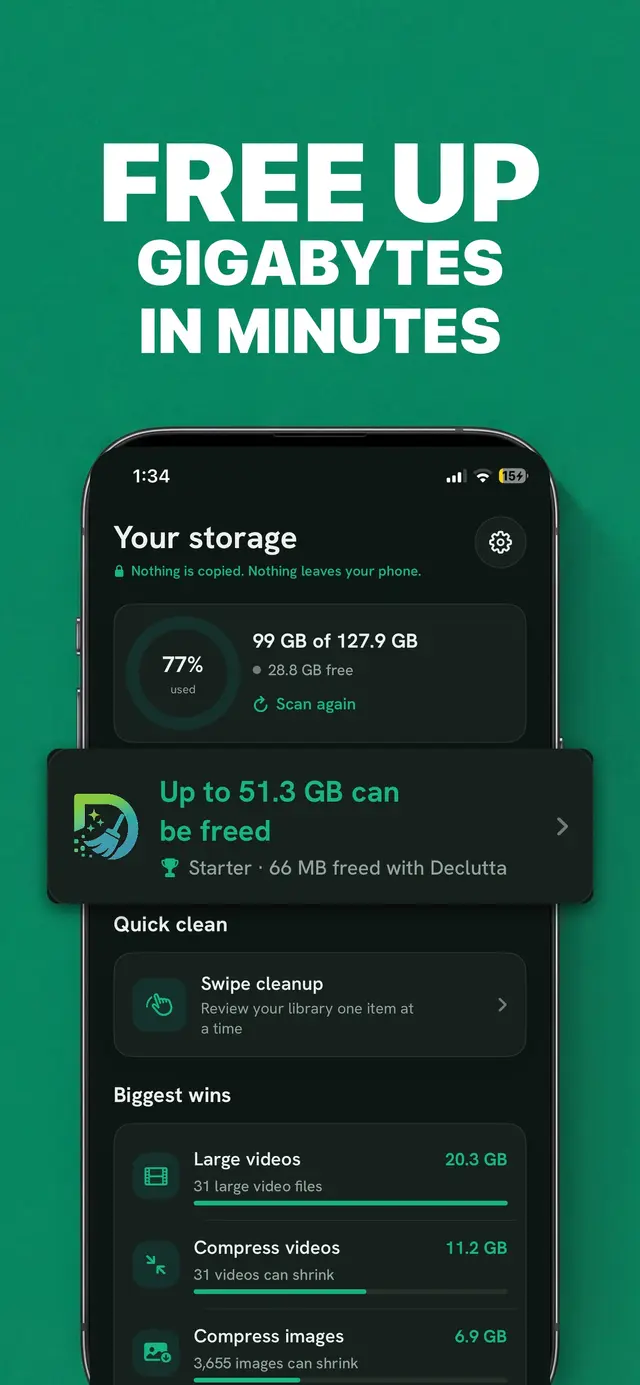
The Photos app won’t help you find any of it - it has no concept of near-identical images and won’t tell you which video is 2 GB. Declutta does both, shows what each category would give back first, and removes only what you confirm. On-device, and free - no ads, no paywall, no account.
Frequently asked questions
What is System Data on iPhone?
System Data is the catch-all bucket at the bottom of Settings → General → iPhone Storage. It holds caches, logs, Siri voices, keyboard dictionaries, downloaded fonts, streaming buffers and partly downloaded iOS update files - everything iOS cannot file under an app or under Photos. It used to be labelled Other.
How do I clear System Data on my iPhone?
There is no button that clears it directly. What genuinely reduces it: delete a downloaded iOS update, clear Safari history and website data, restart the phone, offload the apps that stream or download heavily, and shorten how long Messages keeps attachments. Together those typically recover 1 to 5 GB.
Is System Data the reason my iPhone is full?
Usually not. On most iPhones, Photos is several times larger than System Data. If your phone is full by tens of gigabytes, the photo and video library is where that space went, and it is the part you can actually control.
See the number you can actually change. Declutta scans your library and shows how much is recoverable - free, no ads, no paywall, nothing uploaded.
Get Declutta freeThe full walkthrough is in how to free up storage on iPhone.